
Midterms Are Coming: The 20-Minute Tech Tune-Up That Saves Your Semester
Midterms have a way of sneaking up on you.
One minute, you’re settling into Stats class. The next, you’re juggling review sheets, Canvas notifications, group projects, Greek life commitments, and a thesis that somehow needs to be finished yesterday.
Your tech has to keep up.
Before the midterm crunch hits your campus, take 20 minutes to tune up your phone, laptop, or tablet. Think of it like a vehicle tune-up. You would not start a long road trip with an empty tank, bald tires, and a warning light flashing. Your laptop deserves the same basic care.
Here’s the quick plan.
Minutes 0–4: Back Up Your Notes and Papers
What happens if your laptop stops turning on the night before your exam?
Hopefully, nothing. But hope is not a backup strategy.
Start by making sure your most important files are saved in at least two places:
- Class notes
- Study guides
- Lab reports
- Problem sets
- Thesis drafts
- Presentation files
- PDFs and professor handouts
Use the cloud storage connected to your school or personal account, such as Google Drive, OneDrive, iCloud, Dropbox, or your campus learning management system.
Open your notes app and check for a sync warning. Look for language such as “Synced,” “Up to date,” or a recent timestamp. If your notes app has not synced recently, connect to reliable Wi-Fi and resolve that issue now.
Then create a folder called Midterms_2026. Keep your current study materials together so you are not hunting through 14 different Downloads folders at 11:48 p.m.
For extra peace of mind, copy your most important files to an external drive or USB drive. One copy on your device and one in the cloud is a strong start.
Finally, test your backup. Download one file from the cloud and open it. A backup you cannot access is just a very optimistic folder.

Minutes 4–8: Clear Storage Before Your Device Chokes
Low storage can make your device feel sluggish at the worst possible time.
Your laptop may need free space for temporary files, updates, app data, and exam-related software. Your phone may struggle to save photos, download documents, or install an important security update.
Check your storage settings and remove what you no longer need:
- Old screenshots
- Duplicate downloads
- Large videos already backed up
- Unused apps
- Outdated installers
- Duplicate PDFs
- Files sitting in your Trash or Recycle Bin
Do not delete anything important just because the file name looks unfamiliar. When in doubt, move it to a clearly labeled backup folder first.
Your goal is simple: create breathing room. You do not need a perfectly organized device. You just need enough space for it to work without wheezing through your midterm week.
If your laptop has been slowing down for months, freezing during Zoom, or struggling with large files, it may need more than a quick cleanup. Our laptop repair and upgrade services can help with battery issues, cracked screens, RAM upgrades, and other hardware concerns for MacBooks, Chromebooks, Lenovo, Dell, and more.
Minutes 8–12: Update Before It Updates You
Nothing says “excellent timing” like your operating system forcing an update while your professor is explaining the exam format.
Check for updates now.
Install pending:
- Operating system updates
- Browser updates
- Security patches
- PDF reader updates
- Zoom or Teams updates
- Exam browser or proctoring software updates
- Learning management system apps
Perform the update while your device is plugged in and connected to dependable Wi-Fi. Afterward, restart the device and open the apps you expect to use during midterms.
There is one important exception: If a major operating system upgrade just launched and your exam is tomorrow, do not install it five minutes before the test. Give yourself time to check compatibility. Security updates are important, but a major upgrade deserves a little planning.
Open Canvas, Blackboard, or your school’s LMS. Confirm that you can log in. Open a large PDF. Test your webcam and microphone if your exam requires them.
Five minutes now can prevent a frantic call to your roommate during finals week.
Minutes 12–16: Check Battery Health and Charging Habits
A battery that lasts all day in September may not last through a three-hour exam in October.
Check your device’s battery settings. Look for battery health, capacity, usage, or apps draining power in the background.
Then make a midterm-day plan:
- Charge your device fully before class.
- Carry the correct charger.
- Bring a reliable power bank for your phone or tablet.
- Use Battery Saver or Low Power Mode when appropriate.
- Lower screen brightness slightly.
- Close apps you do not need.
- Avoid leaving dozens of browser tabs open.
Inspect your charging cable and adapter. If the cable is frayed, loose, bent, or getting unusually hot, replace it. A questionable charger is not worth risking your device, or your study schedule.
Now check the charging port. Turn the device off before cleaning it. Use a soft, dry brush to gently remove visible dust. Do not force a paper clip, pin, or other metal object into the port. That “quick fix” can damage delicate internal components.
If your device still charges only at a certain angle, disconnects randomly, or will not charge at all, do not wait until exam day. That is a good reason to schedule mobile phone repair near you before the problem becomes a bigger one.
Minutes 16–20: Protect the Screen, Ports, and Workstation
Midterms mean long study sessions, crowded backpacks, coffee near your keyboard, and devices being carried from the library to the student union to the dorm.
Give your equipment a quick physical check:
- Wipe the screen with a clean microfiber cloth.
- Make sure your case still fits securely.
- Check for cracks around the screen and corners.
- Keep charging ports free of lint and debris.
- Clear dust from vents and keyboards.
- Avoid studying with your laptop on a blanket that blocks airflow.
- Keep drinks away from your keyboard and trackpad.
If your screen protector is cracked, replace it before the device takes a real hit. If your phone already has a spiderweb crack, schedule a cracked screen fix before that small crack spreads across the display.
A cracked screen is not only annoying. It can make reading lecture slides harder, interfere with touch response, and expose your device to additional damage.

What If Your Device Breaks Anyway?
You backed everything up. You charged your laptop. You cleaned the port.
And then your phone still takes a dramatic dive onto the sidewalk outside the library.
It happens.
When you need same day phone repair, Campus Quick Fix can come to you on campus. We repair common issues such as cracked screens, battery problems, cameras, charging ports, and sticking side buttons for Apple, Samsung, Google, and other devices.
You do not have to lose half a day traveling to a repair shop. We work around your schedule. That means you can stay near your residence hall, classroom building, office, or study spot while we help get your device back on track.
Our mobile repair service handles many common repairs the same day, often in under an hour. If you are searching for hardware tech support for students, we can also take a look at laptops, tablets, gaming devices, scooters, drones, TVs, and other electronics.
Most importantly, qualifying repairs are backed by our Limited Lifetime Warranty against defects in parts or workmanship. If the original repair fails because of a covered part or workmanship issue, we will fix it FREE.
Parents: A Little Tech Protection Goes a Long Way
If your student is heading into a busy semester, the Campus Trident Care Plan offers ongoing support for the devices they rely on every day.
It is designed to help families worry less about phones, tablets, laptops, smartwatches, and other essential electronics. Think of Trident Care Tech Protection as a maintenance plan for college life. You would not send a student across the country without a way to handle a flat tire. Their technology deserves a similar safety net.
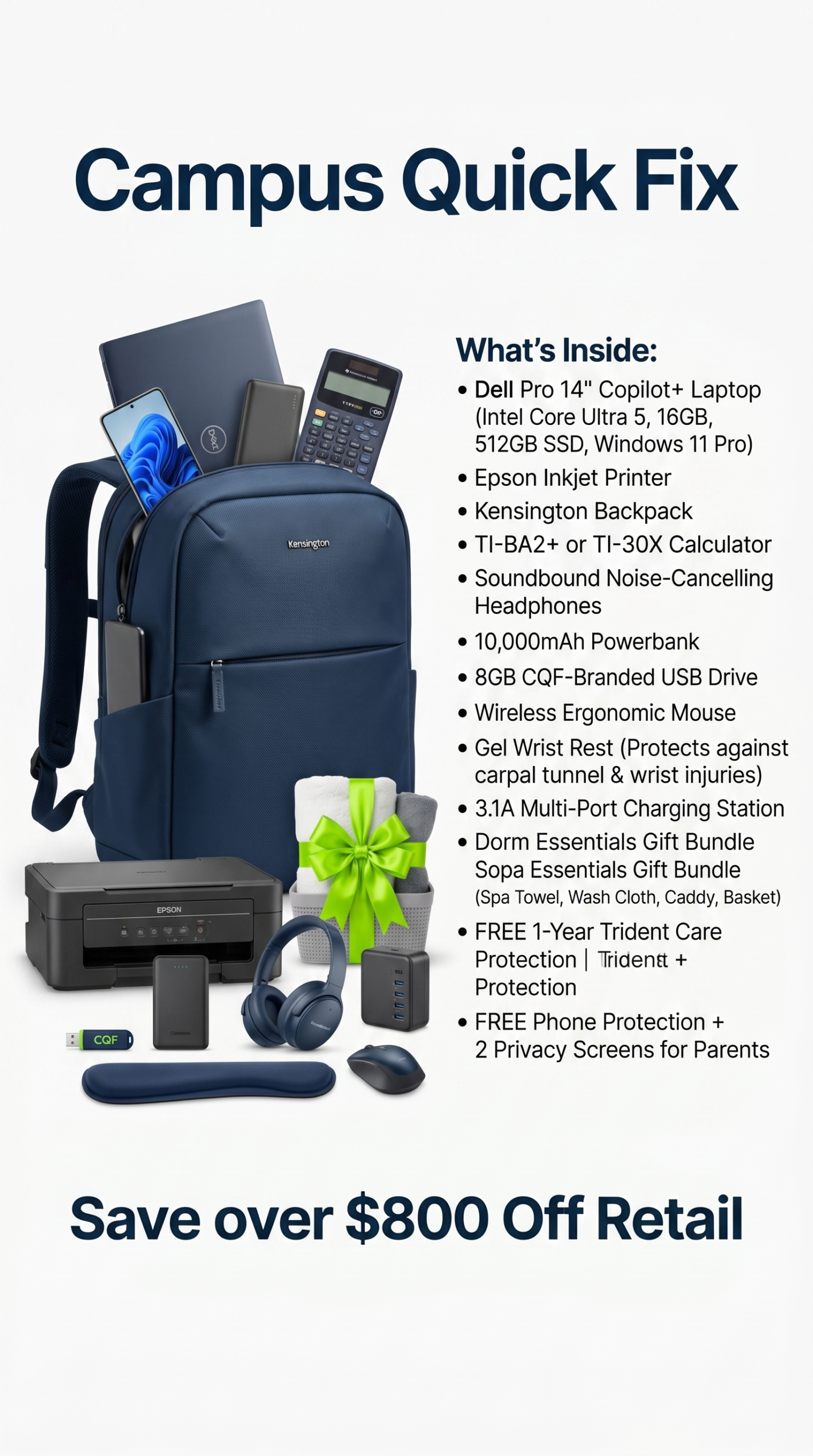
Parents shopping for a new student can also explore the New Student Tech Success Bundles. Options are tailored to different academic needs, from business and humanities to pre-med, science, computer science, and other demanding programs.
The right setup at move-in can make the semester smoother from day one.

Save 20 Minutes. Protect the Semester.
Your midterm tech tune-up does not need to be complicated.
Back up your work. Clear storage. Update carefully. Check your battery. Protect your screen and charging port. Test the tools you will need before the pressure is on.
Then get back to knocking out that study guide.
If something goes wrong, we’ve got you. Campus Quick Fix is veteran-owned and built to support students, parents, and busy campus communities across the Mid-Atlantic.
Need help before midterms? Check the campus visit schedule or call Rachel at (240) 594-1199. We COME TO YOU on campus, so your schedule does not have to stop for your tech.
#TechShieldKit #CollegePrep2026 #ParentHack #MoveInReady #FreshmanEssentials #StudentSuccess #CampusQuickFix